

Getting started with JasperReports // JDBC connections (Part II)
This is the second part of a series of articles to get people started with JasperReports. In the second part, I'll explain how to access your database to run simple queries and show them in a very simple report created with iReport.
The first thing we need to do to get moving is to have iReport ready. So if you haven't got it installed do so. The next step is to have the database driver in your iReport library folder. This means that you will need a JDBC jar packaged driver copied to the ./lib/ directory of iReport's base folder. This step is really important not doing so will not allow you to connect to the database. Most databases provide their own JDBC driver, there are many tutorials and references that speak about JDBC.
Now is the time to configure access to your database. You have to go to the menu "Data -> Connections/Datasources". Then you must click the "New" button.
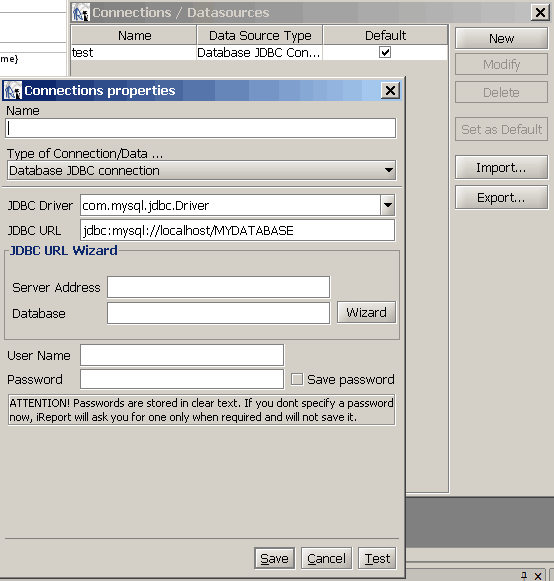
When you get this dialog, the first thing to do is to give a name to the connection "Name". Next is to specify the driver to connect to your database. Then you'll have to modify the JDBC URL to access your database (You can use the wizard to do this too). Finally, you must specify the username and password with permission to get access to the database. It's convenient to test the connection before saving.
With your connection ready, is time to query the database. In my case, I will be using PostgreSQL and I will build a simple query to get the database table names. For this, you must go to the menu "Data -> Report Query".
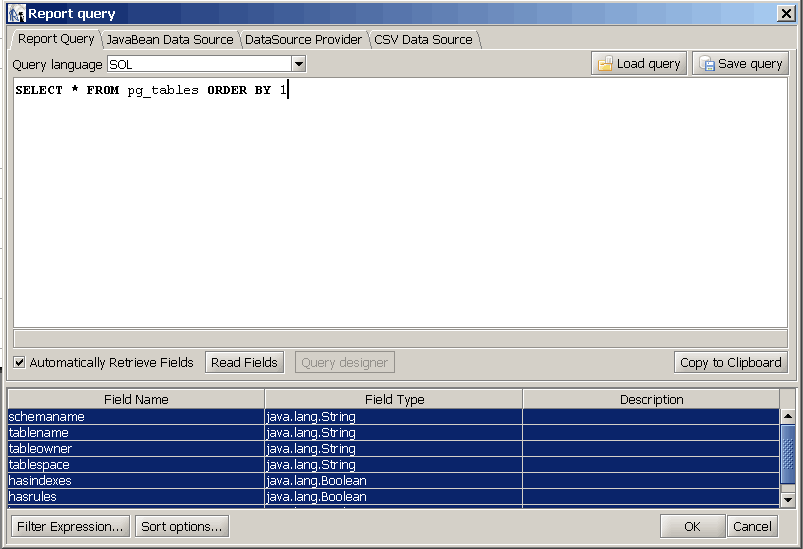
When you insert your SQL query, in my case SELECT * FROM pg_tables ORDER BY 1 iReport automatically gets the metadata for your query and stores them as report fields so you can use them during the development of your report.
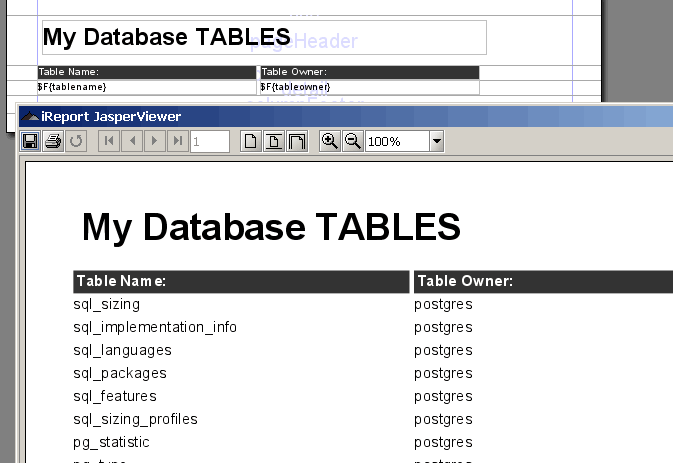
Finally, with the retrieved report fields we can now create our report. This is the result:


Comments in "Getting started with JasperReports // JDBC connections (Part II)"
It brings up a graphical query builder so folks who aren't that experienced with SQL can still create a query.
-Barry Klawans